Yomikurabe: Compare OCR Engines Side by Side on Your Phone

You want to turn a scanned document or a photographed form into text with OCR (text recognition). But which OCR engine will read your document best? You won’t know until you try.
That’s where the smartphone app Yomikurabe comes in. It runs a single document through several OCR engines at once, then lines up the recognized text and processing times so you can compare them.

What Yomikurabe can do
- Read one document with several OCR engines at once
- Compare the recognized text and processing time of each engine side by side
- Try on-device engines right away, with no sign-up or API key
- Keep your results in history and export them as CSV or a text file
Yomikurabe is designed with Japanese documents in mind, including handwriting and vertical text.
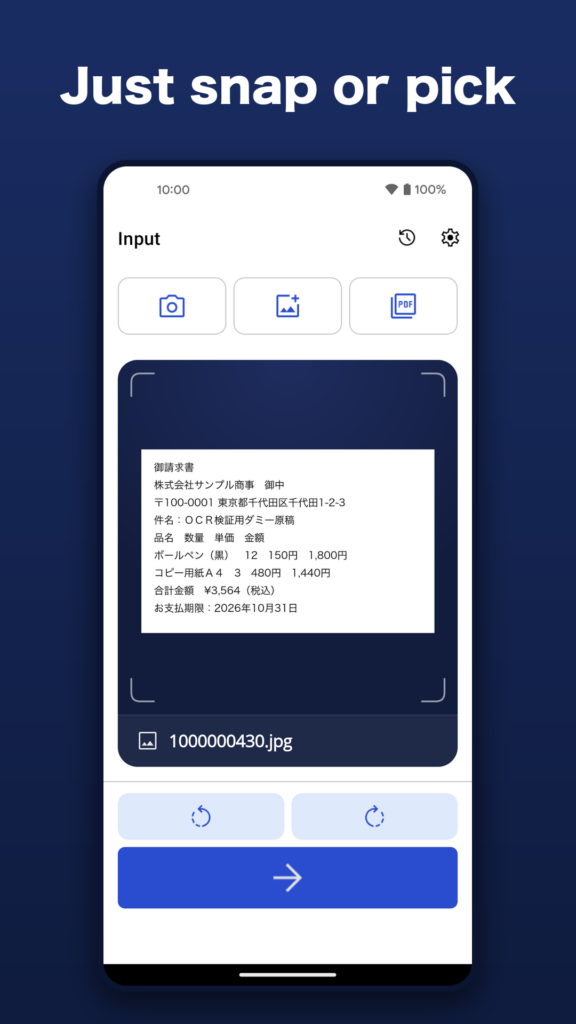
Just snap or pick
Take a photo of your document, choose one from your gallery, or pick a page from a PDF. That’s all.
The app prepares a single image and hands the exact same image to every engine. Since the conditions are the same for all engines, you compare only how well each one reads.

On-device engines, no sign-up needed
The following OCR engines run entirely on your phone. No account or API key is required, and your images never leave your device.
- The OS’s built-in text recognition (ML Kit Japanese on Android, Vision on iPhone)
- RapidOCR (small / medium)
- NDLOCR-Lite
- PP-OCRv5 server
Try cloud OCR too (optional)
Google Cloud Vision and Gemini are also supported. Enter an API key you obtained yourself on the settings screen to use them.
Images are sent to Google services only when you select a cloud engine. Charges are billed under your own Google Cloud / Gemini account, and the app shows an estimated cost based on a price table. Comparing on-device and cloud engines on the same document helps you decide whether to keep things free and local or hand them off to the cloud.
Line them up and compare
When recognition finishes, the results screen lists the character count and processing time for each engine. Switch between engines to compare the recognized text directly.
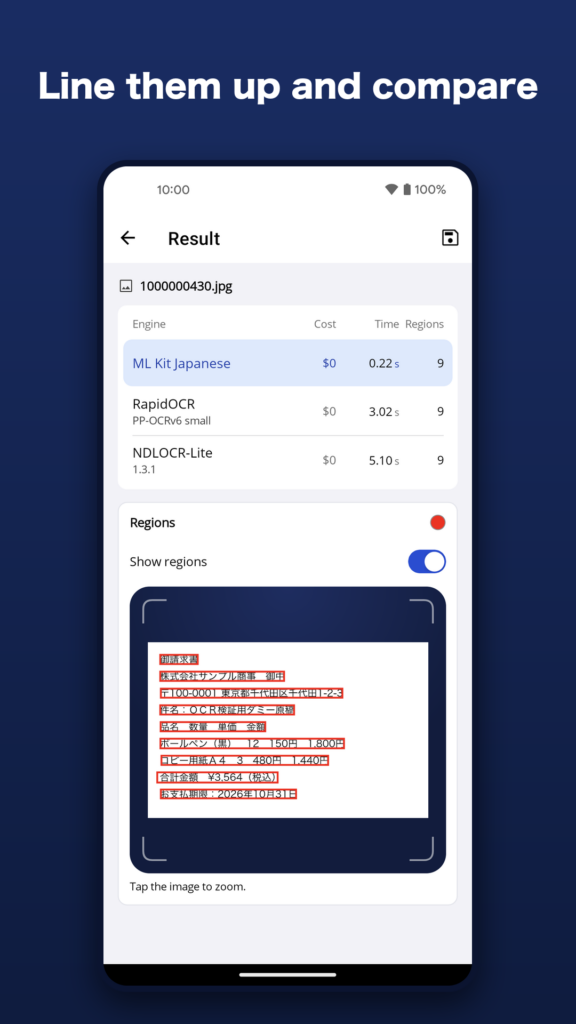
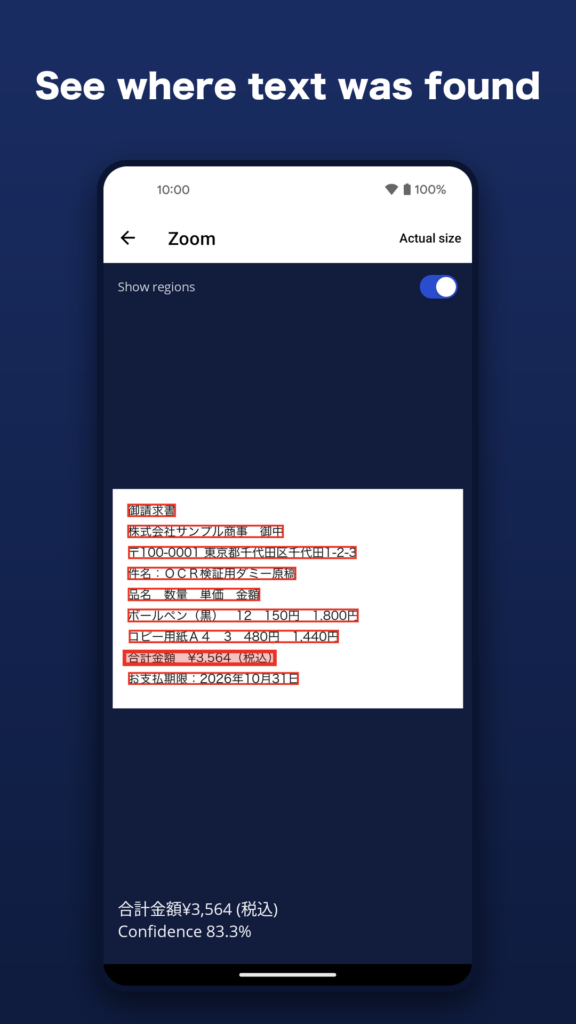
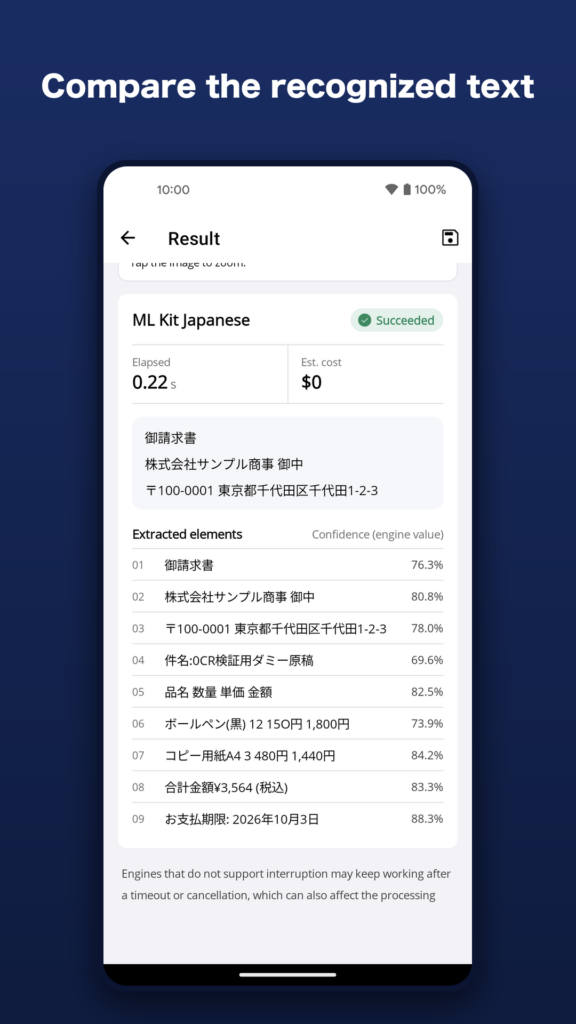
- See recognized regions outlined on the image, and zoom in and out to check the details
- Tap a recognized line to copy its text
- View the processing time for each engine
Keep and export your results
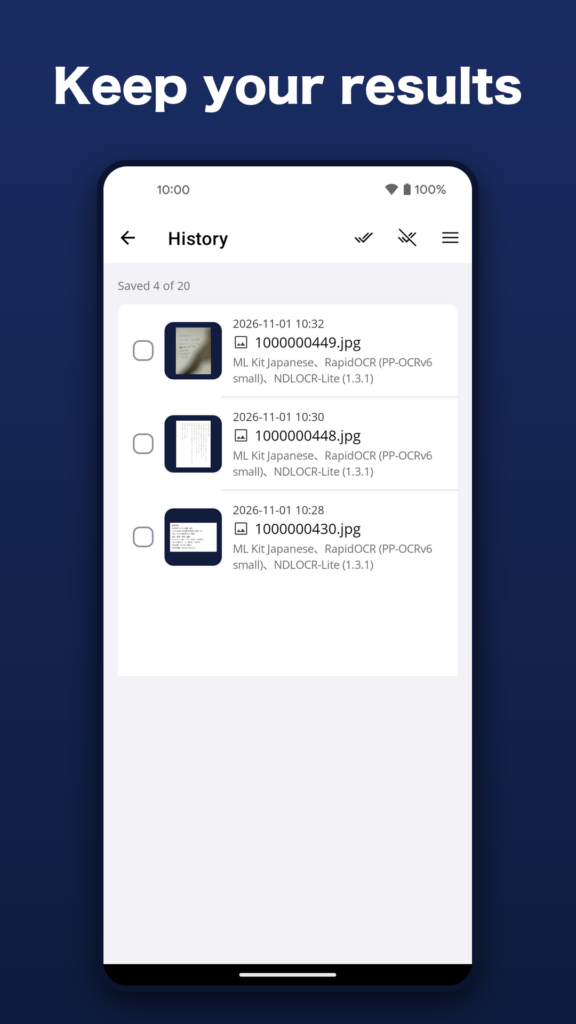
Each run is saved to history on your device. You can look back at it later, export measurements as CSV, and export recognized text as a text file.
Who it’s for
- Anyone who wants to see how OCR engines differ before using OCR at work
- Anyone curious how their forms, handwriting, or vertical text will be read
- Anyone who wants to compare on-device OCR with cloud OCR
Please note
- The app is free and shows ads
- You can select up to 3 engines at a time
- Results vary by engine and image. Always check the results yourself for important documents
- Requires Android 12 or later / iOS 18 or later
Download
Give OCR a try, the easy way. Start with a document you have on hand and see how each engine reads it.
For more details, visit the official website.



Post Comment Cancel reply