products tech unity app, environment, free, game, map, maya, trial, unity, unityasset Editor T 1 Comments
Trying Out Free Grid Maps in Unity: A Guide to Getting Started with the Map Series

When creating a map in Unity, you need to verify more than just its appearance; you must also check whether characters can pass through, whether vehicles can be placed, and whether the collisions for floors and walls function as intended.
We are offering “Grid Map for FREE” (for Map Series 1) and “Grid Map 2 for FREE” (for Map Series 2) at no cost. Both can be used for tasks such as planning the placement and movement of characters or vehicles, as well as configuring collisions. This article explains how to choose between these two free assets and highlights key points to consider when setting them up.
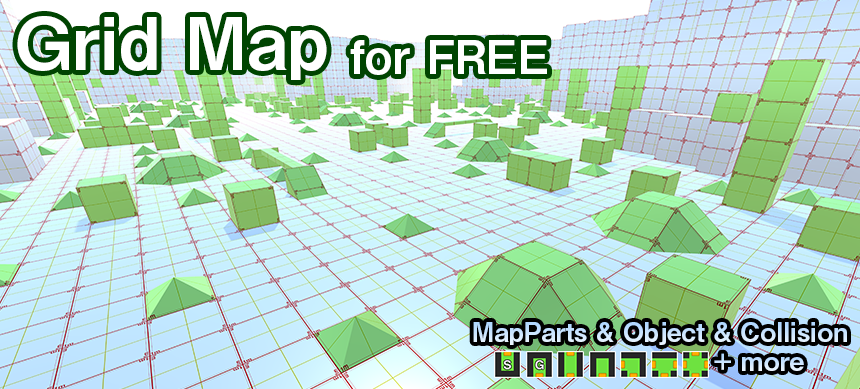
What you can check on the Grid Map
Grid Map is a free asset designed to help you explore the “Map Series” system within your own Unity project. It can be used for verifying collisions, as well as for planning the placement and control of characters or vehicles.
- The process of constructing a map by combining Prefabs
- Behavior of collisions set on floors, walls, etc.
- The sense of scale when placing the characters and vehicles you own
- The feel of movement when navigating through corridors or rooms
- Whether a Series 1 or Series 2 configuration is suitable for the stage you wish to create
Grid Map itself does not provide character controllers or vehicle systems. Please prepare the characters, vehicles, cameras, and input settings required for your control tests, in accordance with your specific project.
Choose from two free Grid Maps
| Comparison items | Grid Map for FREE | Grid Map 2 for FREE |
|---|---|---|
| Series | Map Series 1 | Map Series 2 |
| Primary uses | Series 1 placement and collision verification | Series 2 placement and collision verification |
| Approach to placement | The focus is on specialized parts designed for specific directions of rotation. | Rotate and place in 90-degree increments |
| Structural features | Entrance/Exit, Passageway, Gate, Room | Entrance/Exit, Passageway, Gate, Room, Slope, Grade separation |
| Distribution format | Download the ZIP from the official page | Download the ZIP from the official page |
| License | MIT License | MIT License |
If you would like to test Series 1—which focuses on flat corridors and rooms—consider “Grid Map for FREE”; if you wish to explore the Series 2 layout—which includes elevation changes, slopes, and multi-level crossings—”Grid Map 2 for FREE” is the option to choose.
If you have already decided on the product series you intend to use, please select the free version from that same series.
Things to prepare before starting
- A Unity project for verification, or a working environment where changes can be reverted.
- Information on the Unity version and render pipeline currently in use
- Character or vehicle used for operational checks
- ZIP file obtained from the official distribution page
We recommend verifying the content and functionality in a test project before adding it to your existing production project. As supported Unity versions and installation procedures may be subject to change, please always refer to the latest information provided on the public-facing page or in the included manual.
Steps for trying out Grid Map
1 Decide which series to use
If you are considering products from Series 1, select “Grid Map for FREE”; if you are considering Series 2, select “Grid Map 2 for FREE.” If you have not yet decided, please refer to the comparison table provided earlier and consider whether the map you wish to create requires features such as slopes, overpasses/underpasses, or variations in elevation.
2 Download from the official website
Free assets are provided as ZIP files on the official Cat Studio website. Please use the links from the official website rather than files redistributed by third parties.
Grid Map for FREE Official
Grid Map 2 for FREE Official
3 Check the license and manual.
Before use, please read LICENSE.txt to ensure it meets your requirements. Next, open the manual from the official website and review the placement rules, collision settings, textures, and folder structure.
4 Integrate into a project for verification purposes
Extract the downloaded file and integrate it into your test project by following the instructions provided in the included manual. As the interface and procedures may vary depending on the Unity version or the time of release, this article does not specify fixed names for menus or folders.
5 Place a prefab into the scene
The official Map Series page provides guidance on how to construct a map by placing Prefab files into a Unity scene. Begin by placing a single component into an empty scene, then verify its position, orientation, and scale. Next, add further components—such as corridors or rooms—ensuring they are positioned so that no gaps or height offsets occur at the connection points.
n Series 1, the system relies on specific components designed for particular rotation orientations, whereas in Series 2, map components are placed by rotating them in 90-degree increments. Please refer to the respective manuals for the definitive placement rules.
6 Place characters or vehicles
Place your characters and vehicles onto the Grid Map. Ensure that their starting positions are not embedded within the floor, that there is sufficient clearance for passageway widths and ceiling heights, and that they are able to navigate corners and slopes.
7 Verify collision and movement
- Could it pass through the floor or fall unintentionally?
- Could it pass through walls or gates?
- Might it get caught at the junction of the passageways?
- Can it navigate routes that include slopes or grade-separated crossings?
- Will the camera interfere with the wall or ceiling?
- Whether the sizes of characters and vehicles are appropriate for the map
If an issue arises, begin by separately examining the component placement within the Map Series, as well as the colliders, character controllers, and physics settings of your characters or vehicles. To help isolate the cause, avoid placing too many components at once; instead, start with a minimal configuration.
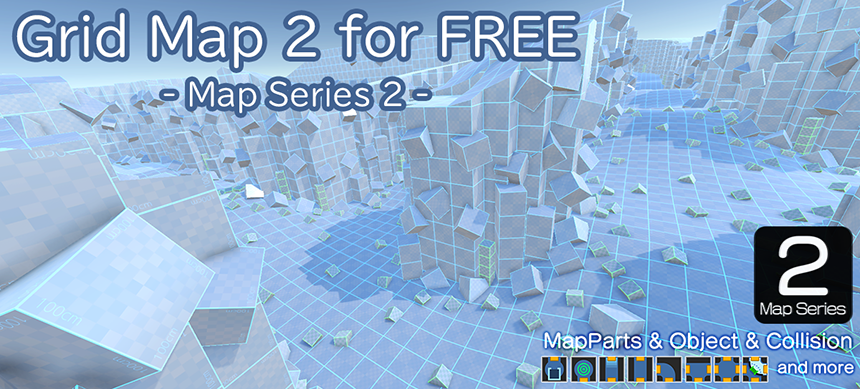
Next steps for verification
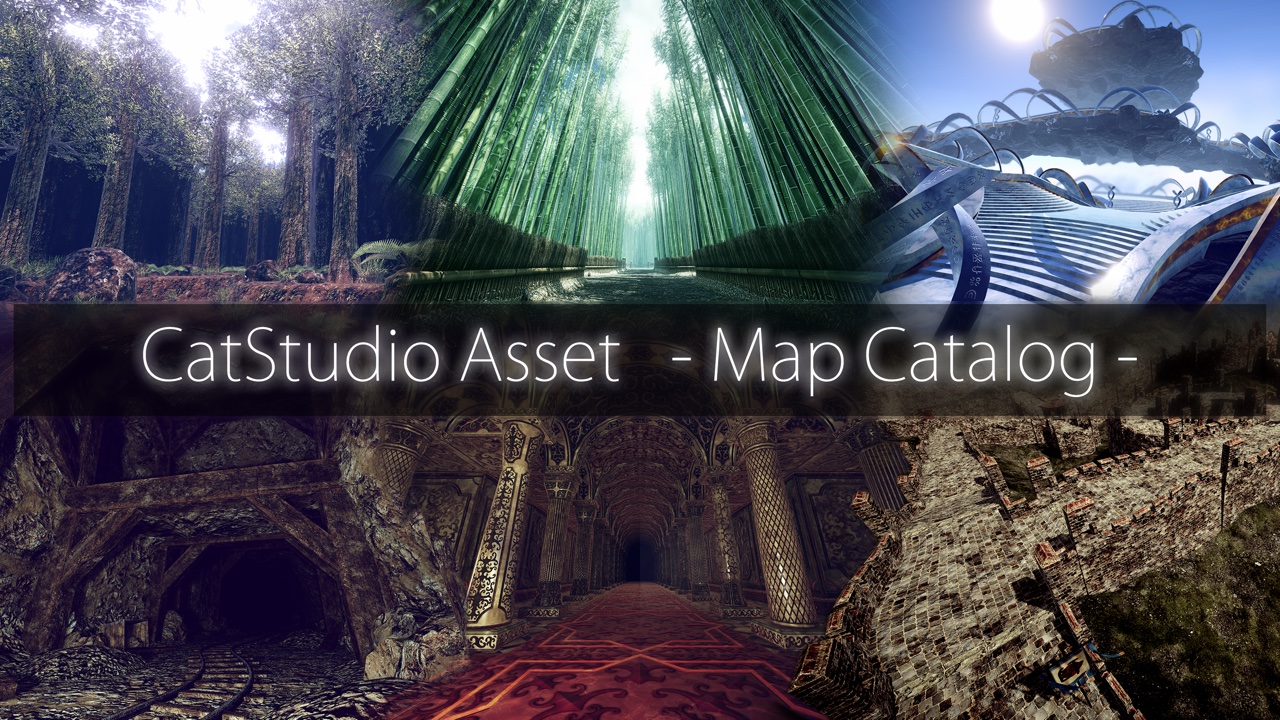
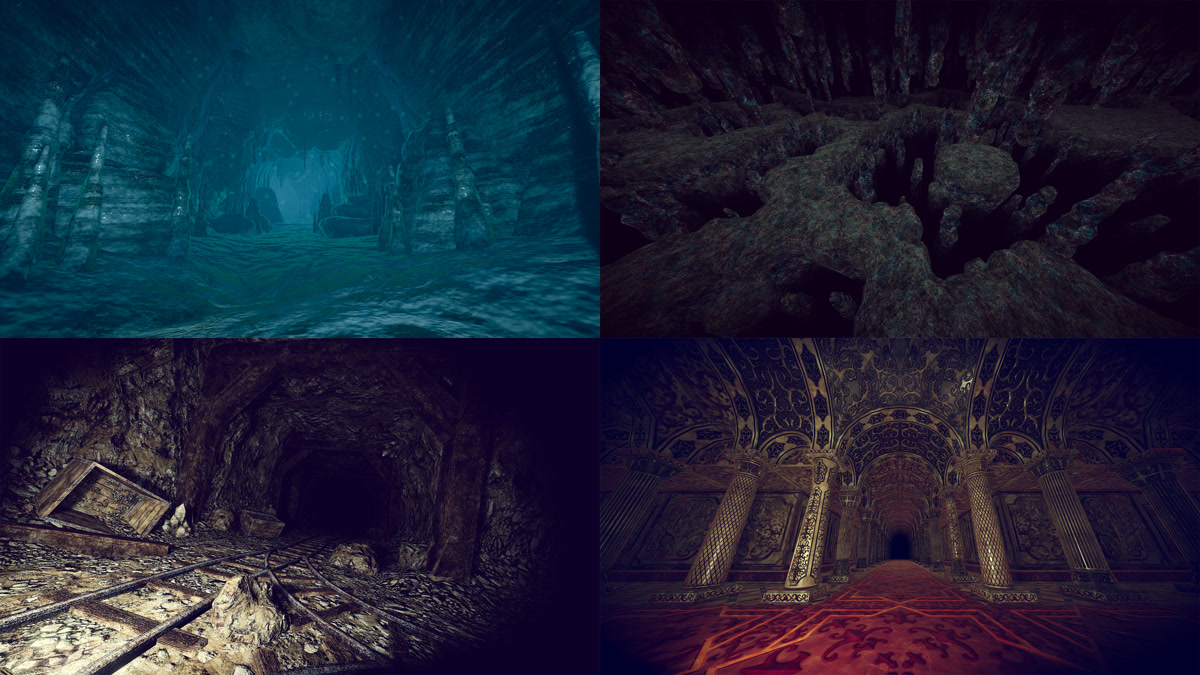
Once you have familiarized yourself with the basic layout and controls using the Grid Map, explore the galleries, videos, WebGL demos, and latest specifications for products that align with the environment you wish to create. You can find products tailored to specific themes—such as caves, forests, underground facilities, the sky, lava, or sci-fi settings—on the respective product line pages within the Map Series.
Map Series 1 Lineup
Map Series 2 Lineup
When acquiring a paid product, in addition to verifying it using the free version, please check the product page and the Unity Asset Store for details such as the supported Unity versions, compatible render pipelines, included content, and current sales status at the time of purchase.

1 comment