How to place a flag that flutters in the wind in Unity? Characteristics of bone-animation-based assets and points to check before implementation
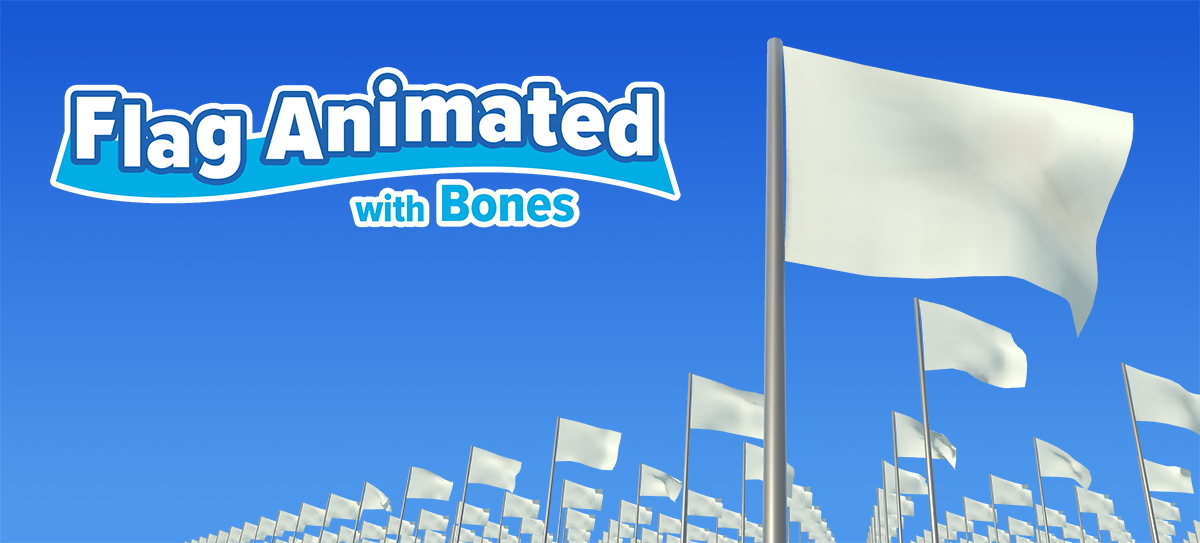
Placing flags on city walls, in stadiums, along streets, or at event venues is an effective way to visually convey the direction of the wind or the orientation of a space. However, when considering how to implement flags in Unity, it is important to look beyond just their visual appearance—you should also account for factors such as the number of flags, their placement distance, the target operating environment, and the process for swapping out designs.
In this article, we will look at key factors to consider when choosing a flag asset, using the Unity asset “Flag Animated with Bones”—which animates flags via pre-prepared bone animations rather than physics simulations—as an example.
3 points to clarify before animating a flag in Unity
1 How to go about moving the flags
Flag movement can generally be approached in two ways: using physics simulations (such as a “cloth” system) or playing back pre-created animations. While physics simulations make it easier to generate reactions tailored to specific situations, they require careful setup and functional verification. The animation-based approach, on the other hand, is well-suited for scenarios where you wish to select and utilize pre-defined motions.
2 Consider the number of units to be placed and their distance from the camera.
The required specifications will vary depending on whether a flag is displayed close-up or as part of a wider scene with multiple flags. If you are planning to place multiple flags, do not rely solely on the presence or absence of LOD (Level of Detail); instead, verify both the frame rate and the visual appearance on the actual target devices and within the specific scene.
3 Check the front and back sides, as well as the handling of the original pattern.
For flags featuring logos or emblems, how they appear on both the front and back is crucial. Verifying details such as the method for swapping textures, the availability of UV guides, and how the reverse side is handled will help minimize the need for rework later on.
What is “Flag Animated with Bones”?
“Flag Animated with Bones” is a flag asset for Unity, provided by Cat Studio. It utilizes bone-based animation for flag movement, rather than relying on physics simulations. As of the July 2026 update, the asset includes three different flag models, allowing users to choose the one best suited to their specific needs.
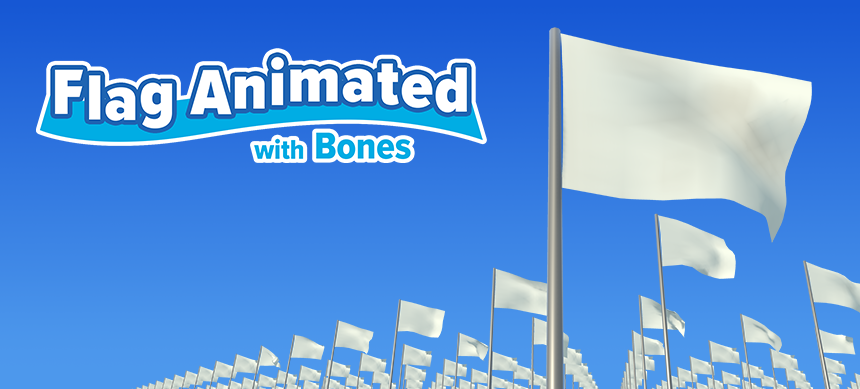
Use three different types of flag models.
Currently, we offer the following three types.
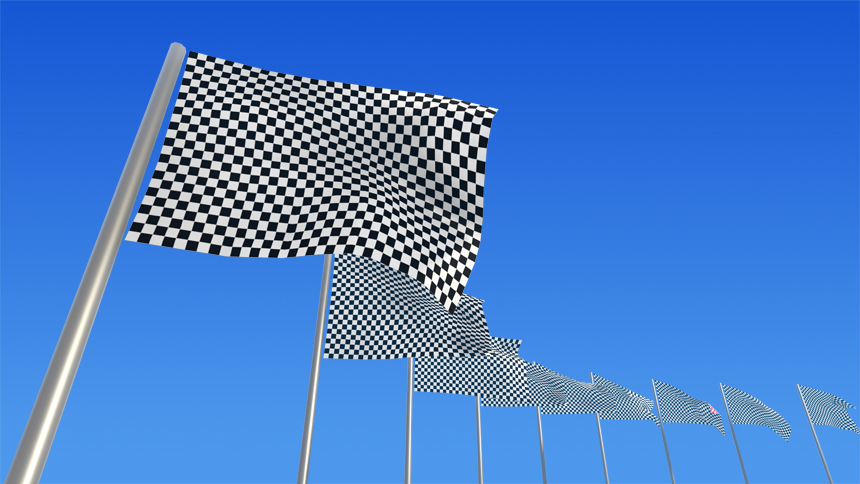
- Flag 00:A flag designed to be attached to a pole or similar support.
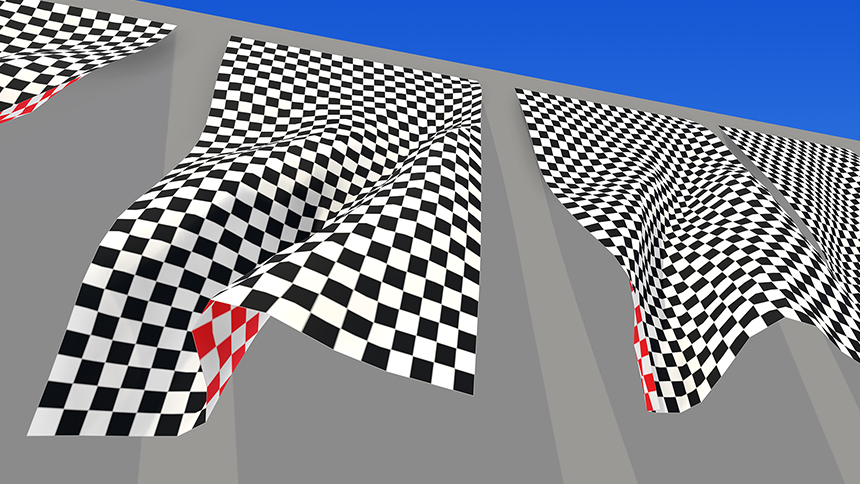
- Flag 01:A flag designed to be fixed to a wall. Includes animations for wind blowing from three different directions.
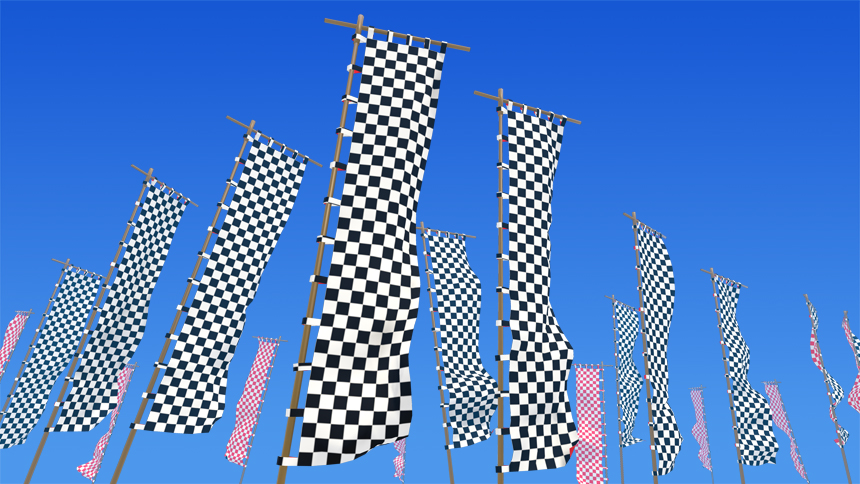
- Flag 02:A large banner designed to be attached to a pole.
A key feature is the ability to choose from various models to suit the installation site—whether on a building wall, a freestanding pole, or a large, vertically oriented flag. When designing a scene, it is advisable to consider not only the shape of the flag, but also how its front and back will appear from the camera’s perspective, as well as the prevailing wind direction.
Five features to help with adoption decisions
1 Animating a flag using bone animation
The movement of the flag is implemented via bone animation. This is an option for cases where you wish to use predefined motion rather than setting up a physics simulation. If your scene requires physics-based behavior—such as collisions with objects or reactions to sudden gusts of wind—please verify beforehand whether this approach meets your requirements.
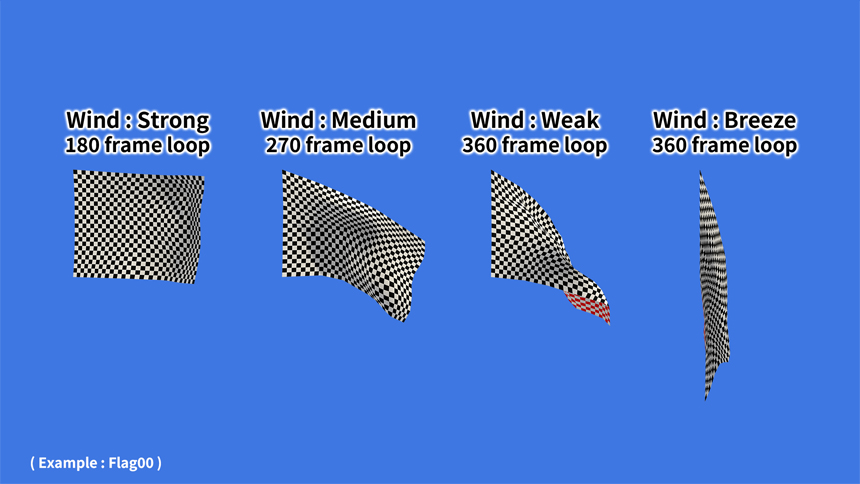
2 4-level wind speed animation
Four levels of animation—strong, medium, weak, and subtle—are available. By varying the intensity of the motion for different locations, you can ensure that the flags do not all appear to move in the exact same way. You can see how they look in practice by checking the comparison images and videos on the official website.
3 The wall-mounted model supports airflow in three directions.
Flag 01 includes animations for three different wind directions. This specification is useful when you need to select a wall-mounted flag that aligns with the wind direction in your scene.
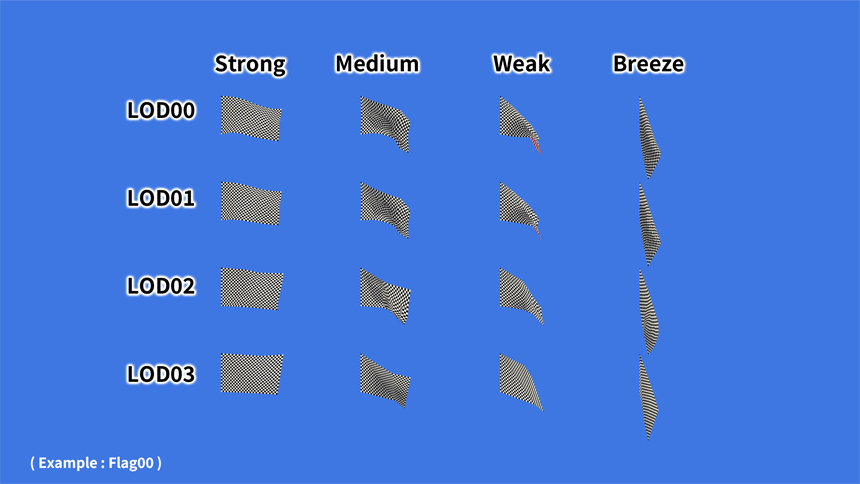
4 LOD models and dedicated animations
Each flag model includes LOD01–03 versions, along with dedicated animations for each LOD level. These can be used to implement a system that switches models based on distance. Please note, however, that the actual performance impact will vary depending on factors such as the total number of objects placed, the number of objects visible on screen at any given time, the specific hardware, and other concurrent processes; therefore, verification within your target environment is necessary.
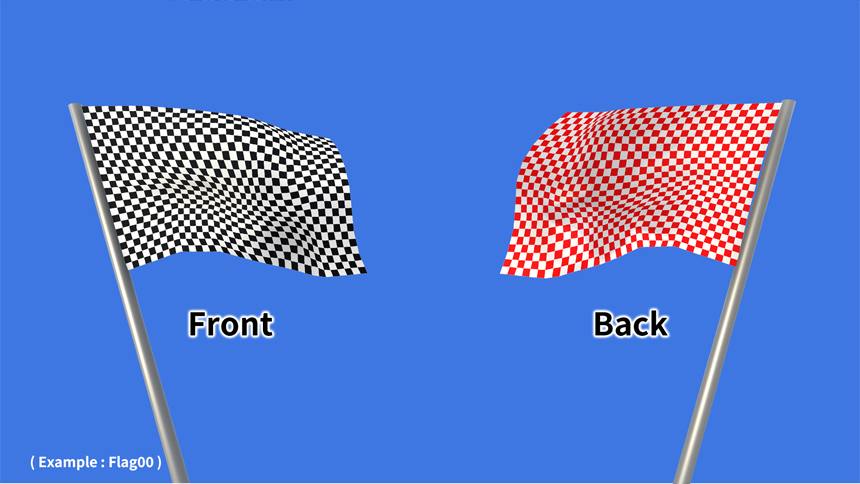
5 Mesh separated into front and back sides, with UV area guides
The setup features separate meshes and textures for the front and back, along with UV area guides for creating custom textures. If you wish to incorporate original designs—such as those for a team, country, or facility—please ensure that you can prepare the textures in accordance with these guides.
Scenarios where it is suitable and scenarios requiring prior verification
Suitable scenarios
- I would like to place flags on city walls, in stadiums, along streets, at event venues, and so on.
- I would like to select from pre-defined wind patterns, rather than using physics simulations.
- I would like to utilize LOD for multiple objects, including those in the distance.
- I want to work with the front and back sides of flags, as well as custom textures.
Cases requiring prior verification
- I want to vary the wind direction and wind speed continuously.
- I want the fabric to deform upon contact with characters or obstacles.
Basic verification procedures during implementation
- Check the supported Unity versions and render pipelines on the Unity Asset Store.
- Select Flag 00, Flag 01, or Flag 02 based on the installation location.
- Select an animation for wind speed and direction that suits the scene’s presentation.
- Refer to the UV area guide as needed and prepare your own custom textures.
- Check the appearance from both near and far distances, and adjust the LOD transitions.
- Verify operation on the target device using the intended number of units and camera conditions.
Check for the latest information before purchasing
Product versions, supported Unity versions, render pipelines, pricing, and included content are subject to change. Before making a purchase, please check the latest information on the official Cat Studio product page and the Unity Asset Store.
- Cat Studio official product page: View images by model, features, comparison materials, and videos.
- Unity Asset Store: Check current availability, version, release date, compatibility, license, and price.
Summary
When implementing flags in Unity, it is important to consider not just their appearance, but also how they move, how many are placed, their distance from the camera, front/back textures, and the target platforms. “Flag Animated with Bones” is a flag asset that features bone-based animation, wind-dependent movement, LOD (Level of Detail) support, distinct front and back textures, and UV guides. It is a great option if you want to place flags using pre-defined animations rather than relying on physics simulations.
Please check the official Cat Studio product page to see how each model appears and how the wind effects look; for the latest information on compatibility and availability, please refer to the Unity Asset Store.
- CatStudio Web:https://www.catstudio.jp/ua_prop_flaganimatedwithbones.html
- Unity Asset Store :https://assetstore.unity.com/packages/slug/348690
- YouTube : https://www.youtube.com/watch?v=LC3Sgm-VmY0&list=PLcePCw9V_U28

1 comment